> For the complete documentation index, see [llms.txt](https://docs.hello-robot.com/llms.txt). Markdown versions of documentation pages are available by appending `.md` to page URLs; this page is available as [Markdown](https://docs.hello-robot.com/stretch4_docs/working-with-stretch/nav_u/create-a-map.md).
# Creating a Map
The goal of this tutorial is to learn the process of creating a static map of the Stretch robot's environment so that it can "remember" where permanent obstacles are located.
## Launching for Data Collection
### Robot Launch
The primary launch file is:
```bash
ros2 launch stretch_nav2 offline_mapping.launch.py
```
This will start:
* The Stretch driver
* The nodes to construct an initial map (using [slam\_toolbox](https://github.com/SteveMacenski/slam_toolbox))
* RViz for visualization
### Simulated Launch
You will need to run two separate processes.
```bash
ros2 launch stretch_simulation simulated_mapping.launch.py
```
This will start:
* The simulated Stretch robot and environment
* The mapping nodes (using [slam\_toolbox](https://github.com/SteveMacenski/slam_toolbox))
* RViz for visualization
You will also need to run teleop. If you have a physical joystick plugged in that you'd like to use, run:
```bash
ros2 launch stretch_nav2 teleop_twist.launch.py
```
Alternatively, use keyboard teleoperation:
```bash
ros2 run teleop_twist_keyboard teleop_twist_keyboard cmd_vel:=/stretch/cmd_vel
```
### Data Collection
It is recommended that you save the raw mapping data as a [ROS bag](https://github.com/ros2/rosbag2) so you can replay it later if needed.
In a new terminal, run:
```bash
ros2 bag record -o MyStretchMappingData /robot_description /scan_filtered /tf /tf_static
```
Replace `MyStretchMappingData` with the name of the directory where the recorded data should be stored.
## Collecting Data
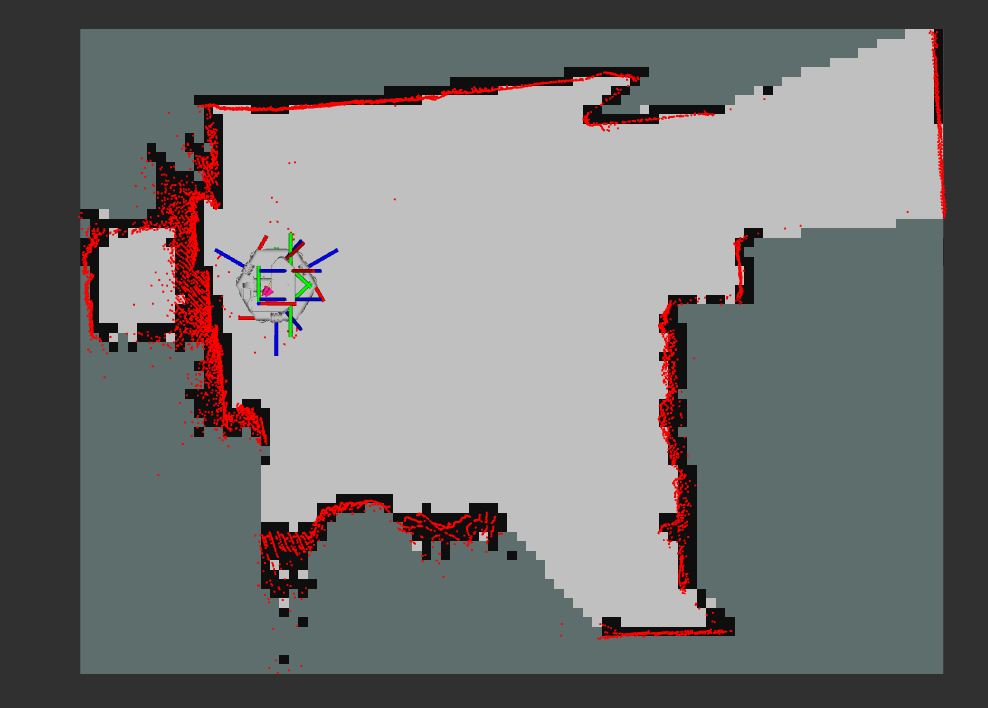
Initially, RViz will display something similar to:
This is a top-down view of the robot with:
* Red points representing current laser scan readings
* A map visualized using three colors:
* **Black**: Occupied space
* **Light Gray**: Free space
* **Dark Bluish Gray**: Unknown space
Now teleoperate the Stretch around the environment.
The goal is to visit all areas where the robot may eventually operate so that the sensors can observe and map those spaces.
As you move around, RViz will continuously update the map, allowing you to see which regions have already been mapped successfully.
### Tips
* Avoid very fast movements, especially rapid turns.
* Revisit previously mapped areas to improve mapping accuracy.
### Completion
When you have driven around to your satisfaction, there are two things to do.
First, press `Ctrl+C` in the terminal where you started recording your ROS bag to stop data collection.
Second, run the following commands to save the map to the `stretch_user/` directory:
```bash
mkdir ${HELLO_FLEET_PATH}/maps
ros2 run nav2_map_server map_saver_cli -f ${HELLO_FLEET_PATH}/maps/MY_MAP_NAME
```
Replace `MY_MAP_NAME` with a descriptive name for the mapped environment.
> **Note**
>
> Do not include a file extension in `MY_MAP_NAME`.
>
> The map\_saver will automatically create:
>
> * `MY_MAP_NAME.pgm`
> * `MY_MAP_NAME.yaml`
Both files will be stored in `${HELLO_FLEET_PATH}/maps`.
## Rerunning Mapping with Bagged Data
If the initial map you saved is not to your liking, you can always rerun the mapping process after the fact using the bag file.
In one terminal, launch the `slam_toolbox`
```bash
ros2 launch stretch_nav2 slam_toolbox.launch.py use_sim_time:=True
```
In another, play back the bagged data.
```bash
ros2 bag play MyStretchMappingData/ --clock
```
(`use_sim_time:=True` and `--clock` ensure the proper timing data is communicated, otherwise the mapping software may get confused about data from the past showing up)
The parameters for the mapping are located in `stretch_nav2/config/mapper_params_offline.yaml` with some clues to the purpose of each listed in the [slam\_toolbox documentation](https://github.com/SteveMacenski/slam_toolbox?tab=readme-ov-file#configuration).
---
# Agent Instructions
This documentation is published with GitBook. GitBook is the documentation platform designed so that both humans and AI agents can read, navigate, and reason over technical content effectively. Learn more at gitbook.com.
## Querying This Documentation
If you need additional information that is not directly available in this page, you can query the documentation by asking a question.
Perform an HTTP GET request on the following URL with the `ask` and `goal` query parameters:
```
GET https://docs.hello-robot.com/stretch4_docs/working-with-stretch/nav_u/create-a-map.md?ask=&goal=
```
`ask` is the immediate question: it should be specific, self-contained, and written in natural language.
`goal` is what the user is ultimately trying to achieve, the reason they need the answer. Sharing it helps GitBook give you a better, more relevant answer. A goal is most helpful when it describes the outcome the user wants rather than restating the question. For example, with `ask=how do I create an API token`, a goal like `automate deployments from our CI pipeline` lets GitBook tailor the answer to that use case.
The response will contain a direct answer to the question and relevant excerpts and sources from the documentation.
Use this mechanism when the answer is not explicitly present in the current page, you need clarification or additional context, or you want to retrieve related documentation sections.