> For the complete documentation index, see [llms.txt](https://docs.hello-robot.com/llms.txt). Markdown versions of documentation pages are available by appending `.md` to page URLs; this page is available as [Markdown](https://docs.hello-robot.com/stretch4_docs/working-with-stretch/general_use/networking-stretch.md).
# Networking Stretch
Stretch 4 features an internal Ethernet network connecting the onboard Intel NUC, the NVIDIA Jetson Orin module (GPU expansion), and the twin Hesai Lidars. This page details the layout, static IP addresses, and configuration of this network.
## Internal Network Architecture
The robot’s onboard computer (Intel NUC), the Jetson Orin module, and the left and right Lidars communicate over a private, wired Ethernet subnet (`192.168.1.x/24`). A physical Ethernet switch inside the robot chassis bridges these devices.
### IP Configuration Table
All internal devices on the private Ethernet network are configured with static IP addresses:
| Device | IP Address | Subnet Mask | Description |
| -------------------------- | --------------- | --------------- | --------------------------------------------------- |
| **NUC (Lidar interface)** | `192.168.1.2` | `255.255.255.0` | IP used by the NUC to receive data from both Lidars |
| **NUC (Jetson interface)** | `192.168.1.100` | `255.255.255.0` | IP used by the NUC to communicate with the Jetson |
| **NVIDIA Jetson Orin** | `192.168.1.101` | `255.255.255.0` | GPU expansion module (SSH user: `jetson1`) |
| **Right Lidar (Hesai)** | `192.168.1.201` | `255.255.255.0` | Right-side Hesai Lidar |
| **Left Lidar (Hesai)** | `192.168.1.202` | `255.255.255.0` | Left-side Hesai Lidar |
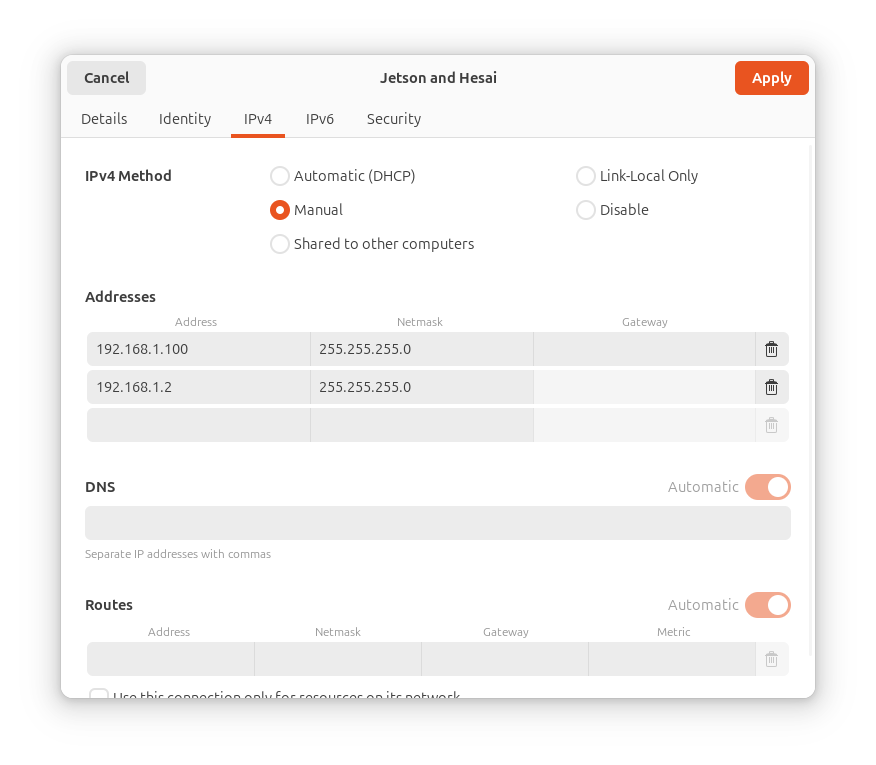
> \[!IMPORTANT] The Intel NUC utilizes a **single network connection profile** configured with **two static IP addresses** (`192.168.1.2` and `192.168.1.100`) on its physical Ethernet interface. This allows a single physical port to communicate with both the Lidars and the Jetson Orin simultaneously.
> \[!WARNING] If you need to connect the robot NUC to the internet via a wired Ethernet cable, you must create and switch to a separate network profile (e.g., DHCP). Note that when this internet profile is active, **the internal Lidars and Jetson Orin will not be accessible**.
>
> To maintain connectivity to both the internet and the robot's internal devices simultaneously, it is recommended to connect the NUC to the internet using its built-in Wi-Fi interface.
### Connecting an External Device via Ethernet
You can attach an external device (e.g., a development laptop or an additional sensor) to the robot's Ethernet port in the base and have it communicate on the same `192.168.1.x` subnet as the Jetson and Lidars.
#### On the External Device
1. Connect an Ethernet cable between your external device and the Ethernet port on the robot's trunk.
2. On the external device, configure a **static IP address** on the `192.168.1.x/24` subnet. Choose an address that does not conflict with existing devices (e.g., `192.168.1.50`):
| Setting | Value |
| ----------- | -------------------------------------- |
| IP Address | `192.168.1.50` (or any unused address) |
| Subnet Mask | `255.255.255.0` |
| Gateway | Leave blank |
#### On the NUC
3. You need to add a static IP address to the NUC's existing wired connection profile so the NUC can communicate with your external device on the same subnet. First, identify the name of the active wired profile by running:
```bash
nmcli connection show
```
The active wired profile is typically named `Jetson and Hesai` or `Wired connection 1`. Note this name — you will use it in the commands below (referred to as ``).
Next, add a new static IP to that profile and restart the connection:
```bash
# Add a third static IP to the existing wired profile
sudo nmcli connection modify "" +ipv4.addresses "192.168.1.51/24"
# Restart the connection to apply changes
sudo nmcli connection down ""
sudo nmcli connection up ""
```
Replace `192.168.1.51` with an appropriate IP for the NUC to use when communicating with your external device. This IP must be different from the device's IP (`192.168.1.50`) and must not conflict with any existing address in the [IP Configuration Table](#ip-configuration-table) above.
> \[!TIP] You can also add the static IP address using the graphical interface instead of the command line. See [Using the Network Manager GUI](#using-the-network-manager-gui) for instructions on opening the wired profile settings — simply add a new row in the **Addresses** table with your chosen IP and netmask.
#### Verify Connectivity
4. From the NUC, ping your external device:
```bash
ping 192.168.1.50
```
5. From the external device, ping the NUC:
```bash
ping 192.168.1.51
```
> \[!NOTE] This setup connects the external device to the robot's **internal** Ethernet switch, meaning it will also be able to reach the Jetson (`192.168.1.101`) and the Lidars (`192.168.1.201`, `192.168.1.202`) directly, provided its subnet mask is `255.255.255.0`.
> \[!WARNING] Adding addresses to the wired profile will persist across reboots. If you later remove the external device, you may want to clean up the extra address:
>
> ```bash
> sudo nmcli connection modify "" -ipv4.addresses "192.168.1.51/24"
> sudo nmcli connection down ""
> sudo nmcli connection up ""
> ```
## External Network Communication
For step-by-step instructions on establishing remote connections to the robot NUC (via SSH, Remote Desktop/RDP, or RustDesk), please refer to the [Connecting to Stretch Guide](/stretch4_docs/working-with-stretch/general_use/connecting-to-stretch.md).
When networking Stretch with external systems, keep the following architectural points in mind:
### 1. Wi-Fi Connectivity
The recommended way to provide internet access to the robot NUC while maintaining connectivity to its internal components is via its built-in Wi-Fi interface. Connecting the NUC to a local office/lab network allows external developer PCs on the same Wi-Fi subnet to ping and access the NUC's local IP address.
For stable development, it is highly recommended to configure your Wi-Fi router to assign a **static DHCP reservation** to the NUC's Wi-Fi MAC address so it retains the same IP across reboots.
To check the robot's current IP address on the Wi-Fi interface, run the following on the NUC:
```bash
ifconfig -a
```
Look for the `wlan0` (or similar wireless) interface — the `inet` field shows the robot's Wi-Fi IP address, which is typically in the `10.1.10.xxx` range.
### 2. ROS 2 Network Communication (Zenoh & DDS)
Stretch 4 uses ROS 2 Jazzy, which defaults to the Zenoh middleware (`rmw_zenoh_cpp`) for node communication. This makes sharing ROS 2 topics over the network extremely efficient:
#### **Zenoh Bridging**:
To connect to a Zenoh router running on the robot from a different computer, you should:
1. Stop the running Zenoh daemon: `systemctl --user stop zenoh.service`
2. Run Zenoh on the robot exposed to the network using `ZENOH_CONFIG_OVERRIDE=listen/endpoints=["tcp/0.0.0.0:7447"] ros2 run rmw_zenoh_cpp rmw_zenohd`
> Note: You can modify Zenoh to start on boot with the listen endpoint exposed by adding `Environment=ZENOH_CONFIG_OVERRIDE=listen/endpoints=["tcp/0.0.0.0:7447"]` to `~/.config/systemd/user/zenoh.service` on your robot.
3. Lastly, on the client you can run:
```
export RMW_IMPLEMENTATION=rmw_zenoh_cpp
# Replace ROBOT_IP with your Stretch's IP address
ROBOT_IP=192.168.X.XXX
export ZENOH_CONFIG_OVERRIDE='mode="client";connect/endpoints=["tcp/$ROBOT_IP:7447"]'
```
#### **DDS Subnets**
If configuring the robot to use traditional DDS middleware (like CycloneDDS or FastDDS), ensure your developer machine and the NUC are on the same subnet (or VPN network) and share the exact same `ROS_DOMAIN_ID`.
### 3. Web-Based Interfaces
Many ROS and Python SDK applications on Stretch run local web servers to expose web consoles, camera stream feeds, or teleoperation web tools:
* **Exposing Services**: You can run web interfaces (e.g. Foxglove Studio, ROS Bridge, or custom Flask/React servers) on the NUC.
* **Connecting**: You can access these interfaces from any remote device by entering `http://:` in your browser.
***
## Network Utilities and Commands
The following command-line tools can be used **on the NUC** (either via a tethered monitor or an SSH session) to verify connectivity and inspect the internal network configuration:
### Checking Device Connectivity
You can test the connectivity to the internal components from the NUC using standard `ping` commands:
```bash
# Ping the Jetson Orin
ping 192.168.1.101
# Ping the Right Lidar
ping 192.168.1.201
# Ping the Left Lidar
ping 192.168.1.202
```
### Remote Access to the Jetson Orin
From the NUC's terminal, you can log in to the Jetson module via SSH:
```bash
ssh jetson1@192.168.1.101
```
> \[!NOTE] During robot manufacturing and calibration, the networking utilities automatically configure passwordless key-based SSH access from the NUC to the Jetson by generating a standard SSH keypair (`~/.ssh/id_rsa`) on the NUC (if one does not exist) and copying it to the Jetson using `ssh-copy-id`. Consequently, you should be able to log in to the Jetson from the NUC directly without entering a password. If you are unable to log in to the Jetson from the NUC, please contact us at
### Checking Network Profiles (nmcli & GUI)
To verify the host network configuration on the NUC, you can check active network connections via the command line or the graphical settings interface:
#### Using the Command Line (nmcli)
Run the following command in a terminal:
```bash
nmcli connection show
```
The active Ethernet profile should show manual configuration. You can inspect the IP addresses assigned to the wired profile with:
```bash
nmcli connection show "Wired connection 1" | grep ipv4.addresses
```
Expected output (addresses may appear on a single line):
```
ipv4.addresses: 192.168.1.2/24, 192.168.1.100/24
```
If both addresses are listed, the NUC's internal network profile is correctly configured.
#### Using the Network Manager GUI
If you have a monitor connected to the NUC (or are connected via RustDesk/RDP):
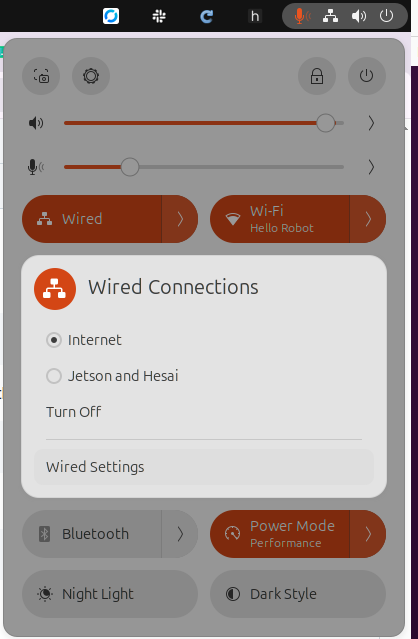
1. Open the **Settings** application from the desktop.
2. Select **Network** from the left sidebar.
3. Under the **Wired** section, click the **Gear (Settings)** icon next to the active wired connection profile.
4. Navigate to the **IPv4** tab.
5. Verify that:
* The **IPv4 Method** is set to **Manual**.
* Both IP addresses (`192.168.1.2` and `192.168.1.100`) are listed in the **Addresses** table, each with a netmask of `255.255.255.0`.
If the configuration matches the above, the NUC's internal network is correctly set up and all internal devices (Jetson and Lidars) should be reachable.
---
# Agent Instructions
This documentation is published with GitBook. GitBook is the documentation platform designed so that both humans and AI agents can read, navigate, and reason over technical content effectively. Learn more at gitbook.com.
## Querying This Documentation
If you need additional information that is not directly available in this page, you can query the documentation by asking a question.
Perform an HTTP GET request on the following URL with the `ask` and `goal` query parameters:
```
GET https://docs.hello-robot.com/stretch4_docs/working-with-stretch/general_use/networking-stretch.md?ask=&goal=
```
`ask` is the immediate question: it should be specific, self-contained, and written in natural language.
`goal` is what the user is ultimately trying to achieve, the reason they need the answer. Sharing it helps GitBook give you a better, more relevant answer. A goal is most helpful when it describes the outcome the user wants rather than restating the question. For example, with `ask=how do I create an API token`, a goal like `automate deployments from our CI pipeline` lets GitBook tailor the answer to that use case.
The response will contain a direct answer to the question and relevant excerpts and sources from the documentation.
Use this mechanism when the answer is not explicitly present in the current page, you need clarification or additional context, or you want to retrieve related documentation sections.