> For the complete documentation index, see [llms.txt](https://docs.hello-robot.com/llms.txt). Markdown versions of documentation pages are available by appending `.md` to page URLs; this page is available as [Markdown](https://docs.hello-robot.com/stretch4_docs/working-with-stretch/general_use/connecting-to-stretch.md).
# Connecting to Stretch
Stretch can be accessed in two ways:
* Tethered Setup: Directly connect a monitor, keyboard, and mouse to the robot
* Untethered Setup: Access the robot remotely from another computer
### Tethered Setup
Stretch 4 includes an onboard computer located within the robot’s trunk, commonly referred to as the Intel NUC. This system runs Ubuntu 24.04 and serves as the primary environment for development, testing, and visualization.
A tethered setup allows you to interact directly with the robot by connecting peripherals such as a monitor, keyboard, and mouse to the onboard computer.
#### Hardware Access and Ports
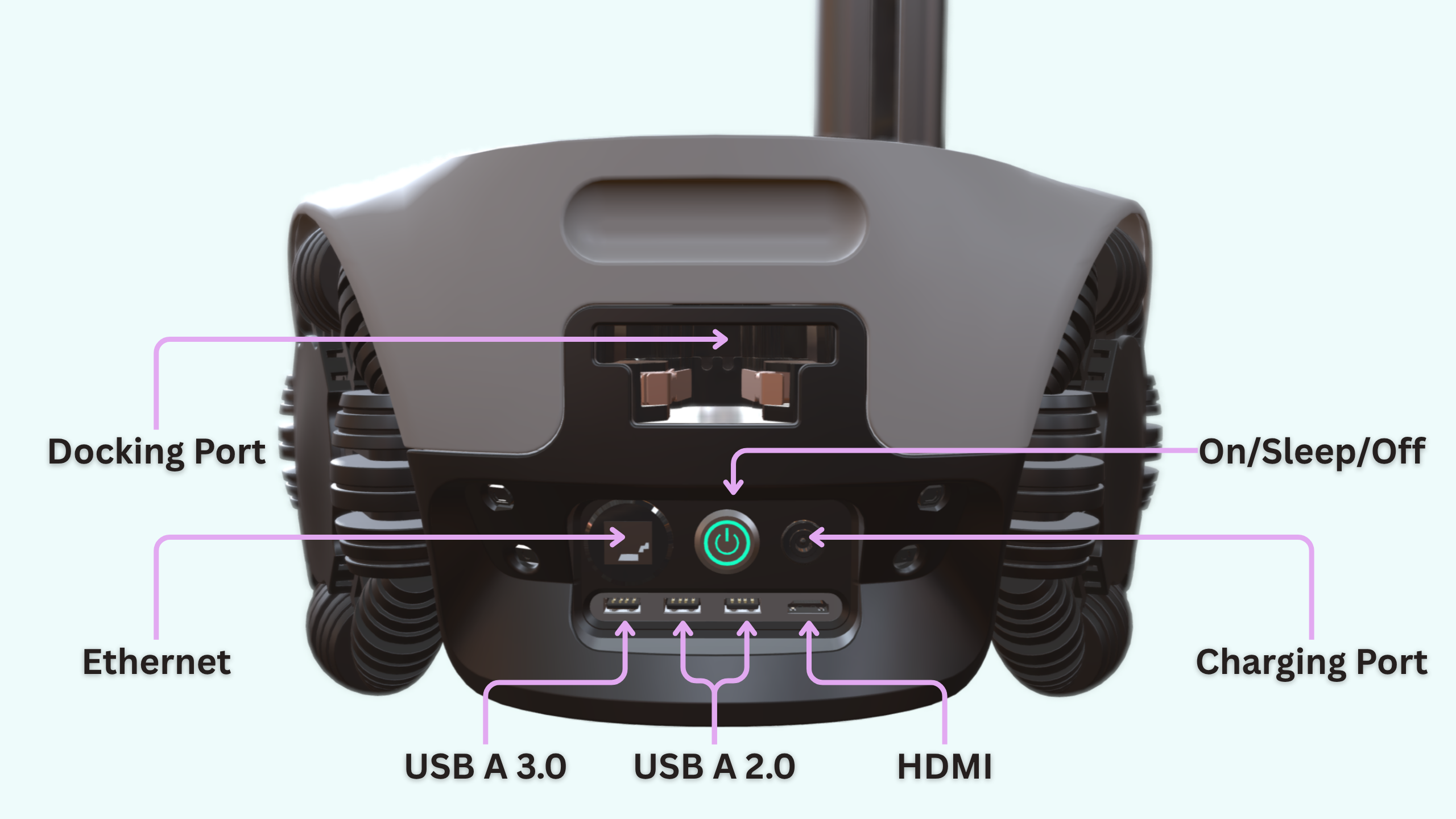
The main connectivity panel is located in the trunk, alongside the power controls. It provides:
* 3 × USB-A 2.0 ports
* HDMI port
* Ethernet port
* Power On/Sleep/Off button
* Charging port
Additional USB ports are distributed across the robot and are internally connected to the same onboard computer:
* Wrist: USB-A 2.0
* Head: USB-A 3.2 and USB-C 3.2
These ports allow you to connect peripherals and sensors at convenient locations depending on your setup.
#### Setting Up a Wired Connection
To begin using Stretch in tethered mode:
* Connect a monitor to the HDMI port in the trunk
* Connect a USB keyboard and mouse (wired or via wireless dongle)
* Power on the robot using the trunk’s On/Off button
After booting, the onboard computer will display the Ubuntu desktop environment on the connected monitor.
The default user login credentials came in the box with the robot. By default, the robot is not configured to ask for your password on boot, but may ask for it later if the NUC goes to sleep.
### Untethered Setup
> Once your robot is on the network, you can access it remotely from your computer. This is the preferred way to work with Stretch for most users. The options below range from full desktop access to lightweight development workflows.
Remote Access Options:
1. [RustDesk](#rustdesk) (Required a Dummy HDMI Dongle, Ubuntu GUI access)
2. [RDP](#rdp-with-remote-login-) (Does not require a Dummy HDMI Dongle, Ubuntu GUI access)
3. [SSH / VScode Remote](#ssh--vscode-remote-) (Does not require a Dummy Dongle, no Ubuntu GUI access)
#### Security Considerations
An untethered setup usually requires connecting your robot to the local LAN or internet, and setting up software and credentials for remote access. This means that anyone with access to the network can access the Ubuntu Operating System and your robot remotely.
**It is important to follow your institution or organization's security best practices for setting up remote access and Ubuntu User Account Credentials.**
It is highly recommended to create a new Ubuntu User Account when using remote access. This maximizes security and helps users share a robot. Instructions for adding a new user can be found here:
It is also recommended, but optional, to disable auto-login. Go to Settings -> Users -> hello-robot (or your default user) -> Disable auto-login. While having the default user logged in does not get in the way of other users connecting using RDP, it is taking up memory running in the background. Also, with auto-login enabled, the keychain is locked, which limits remote-access to many features.
**Tunneling services (such as Tailscale)**
If you want to access your robot from a non-LAN network, it is recommended to set up a secure tunnel or use a service such as Tailscale, which connects your devices and the robot without additional networking configuration. You can download and log-in to Tailscale on both the robot and your devices by following their documentation:
#### RustDesk
RustDesk is a third party software that enables you to access the robot's Ubuntu desktop remotely. It provides a graphical interface, making it ideal for working within the Ubuntu environment, doing development on the robot, and using tools such as Rerun and RViz without additional network configuration.
If you plan to access Stretch through RustDesk without a physical monitor connected, you will need to purchase a dummy HDMI dongle to plug into the HDMI port.
> Note: The Dummy HDMI dongle tricks Ubuntu's Gnome Desktop Manager into making the display visible. Without it, you would see a blank screen when you connect via RustDesk or native Remote Desktop.
You do not need the dongle during RustDesk installation. For setup, first connect the robot to your host computer with a standard HDMI cable. The dummy HDMI dongle is only required afterward, once RustDesk is installed.
According to RustDesk's documentation, it is recommended to host your own Relay server and [avoid using the public servers for sensitive work](https://github.com/rustdesk/rustdesk/wiki/Login-required-for-public-server#rustdesk-is-designed-to-be-self-hosted-this-public-server-is-provided-for-demonstration-and-testing-only-please-do-not-use-it-for-production-or-sensitive-work).
**Install Steps**
1. [Download and install RustDesk](https://rustdesk.com/) on your host machine.
2. Make sure an HDMI cable is connected between your host computer and the robot. Open RustDesk on the robot, either from the applications menu or by running:
```
rustdesk
```
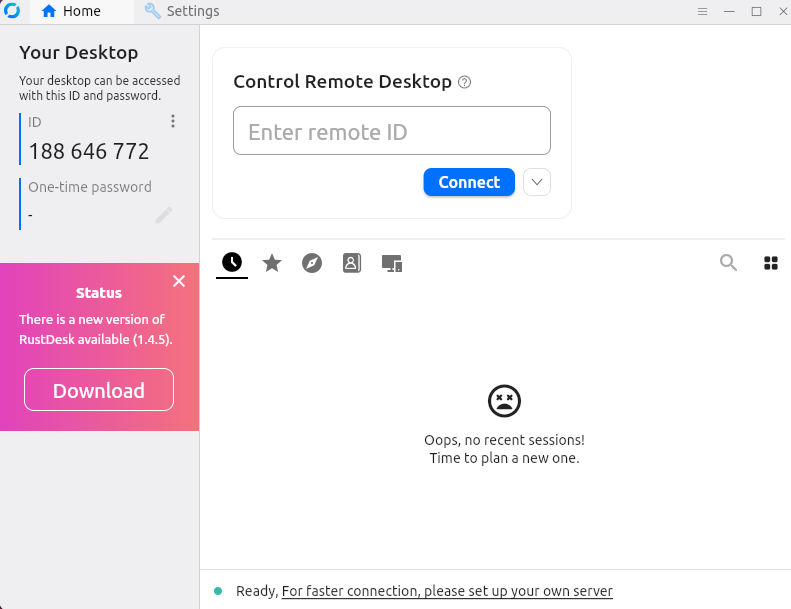
3. Note the `ID` shown in RustDesk, you will need it later.
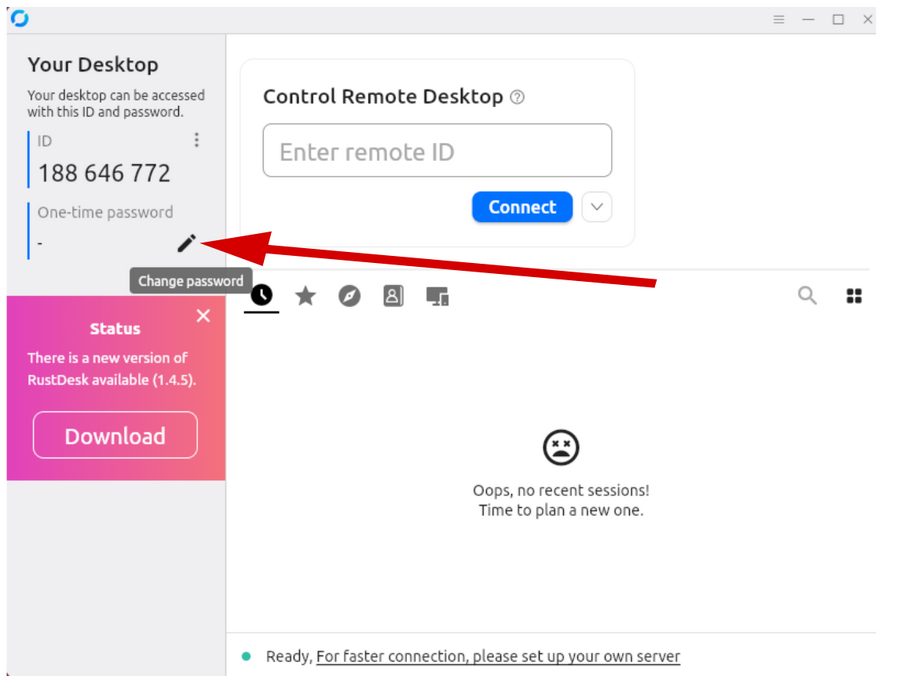
4. Set a `Permanent password`:
1. Click the edit icon:
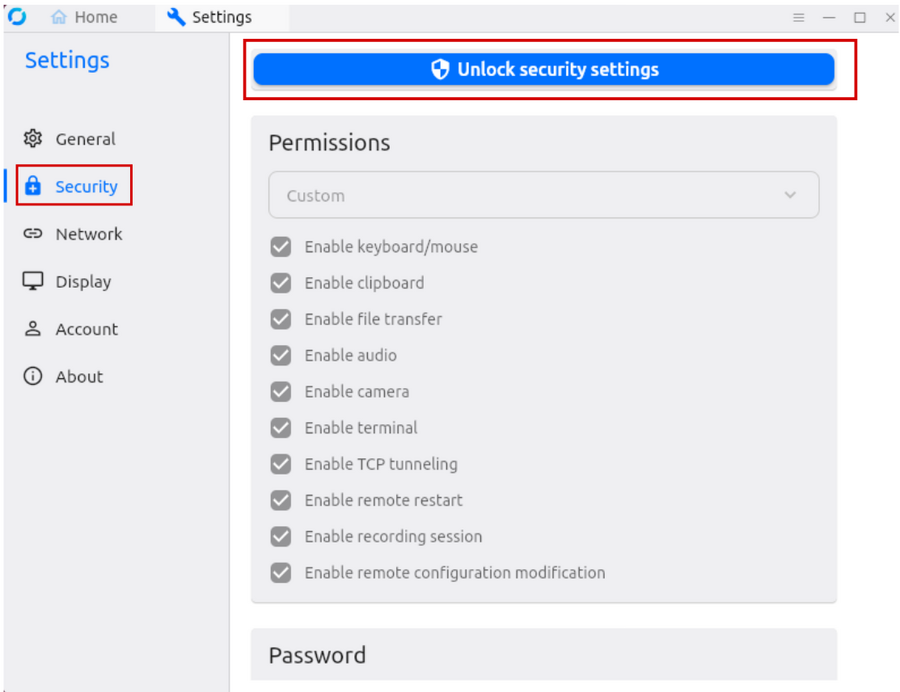
2. Click `Security` on the left-hand side, then select `Unlock security settings`:
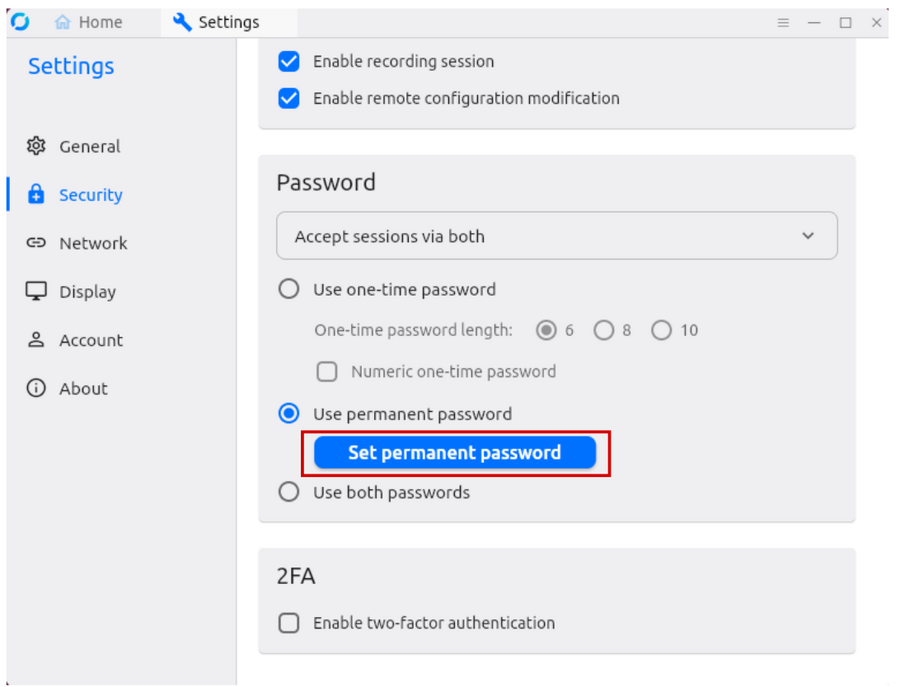
3. Click `Set permanent password` and set a strong password. It is strongly recommended to also set up Two-Factor Authentication from the same menu. **It is important to follow your institution or organization's security best practices for setting up remote access and Ubuntu User Account Credentials.**:
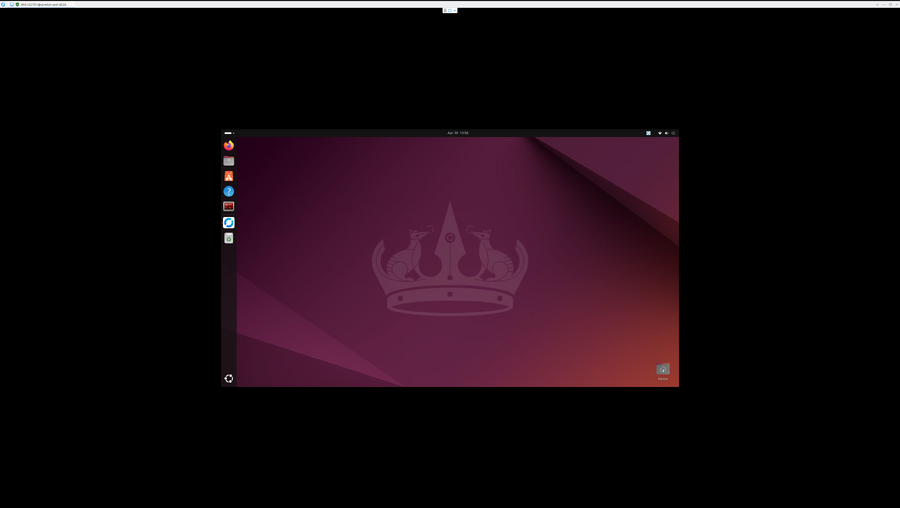
5. Close RustDesk on the robot. Disconnect the HDMI cable, connect the dummy HDMI dongle to the robot, and open RustDesk on your host machine. Enter the robot’s `ID` and permanent password. You now have a remote connection to the robot using RustDesk:
#### RDP with Remote Login
Ubuntu 24.04 ships with a built-in Remote Login feature that allows you to access your Ubuntu User Account remotely using Remote Desktop Protocol (RDP). Multiple users can log into the robot at the same time for development, if necessary.
The official Ubuntu docs for setting up Remote Login are here:
You do not need a Dummy Dongle to use Remote Login. Note that Remote Login is different from Remote Desktop, which shares the same menu in Ubuntu's Settings. Remote Desktop does require a Dummy Dongle and requires you to remain logged in. Remote Login allows you to access the Ubuntu login screen, and then you can log in to any user account on the system.
**Robot Setup**
The following instructions will walk you through setting up Remote Login.
Please follow these steps while you are on the hello-robot or default user account.
1. Log in to your robot and go to Settings -> System -> Remote Desktop
3. Skip the Desktop Sharing tab, and click the Remote Login tab.
A. Click Unlock and type in your password. B. Toggle to Enable Remote Login C. At the bottom of the window, enter a username and strong password combination to allow you to remotely connect to this robot. It is a good idea to NOT use the password for your User Account here, because if the remote login password is compromised, you still have a layer of access security by having a different User Account password. **It is important to follow your institution or organization's security best practices for setting up remote access and Ubuntu User Account Credentials.**:
4. Retreive the ip of this robot using `hostname -I` or `tailscale ip` if you are using Tailscale.
**Client Setup on Linux**
1. Run `sudo apt install remmina`
2. Open Remmina and click the + icon, enter your robot's ip, username and password you configured in the previous step. Click Save and Connect to test your connection
3. Click the Toggle Dynamic Resolution button on the sidebar to make the RDP window use your monitor’s resolution.
4. Login to your User Account to start using your robot.
**Remmina Audio Passthrough**
On the client, right click the Remmina connection -> Edit -> go to the Advanced tab -> Audio output mode. Choose Remote to play audio through the robot’s speakers. Local to play it using the client speakers. Then click Save.
**Client Setup on MacOS**
1. Get the Windows App, offered by Microsoft Corporation, from the [Apple Store](https://apps.apple.com/us/app/windows-app/id1295203466)
2. Create a new Computer connection and change the PC name to the IP Address of the robot. You can add a Friendly Name to help identify the robot. Under Credentials, you can click to “Add Credentials” and save your password so you do not have to enter it every time you connect.
> Note: if you encounter a blank screen error on MacOS, export your connection and change the line that says `use redirection server name:i:1`, and re-import your configuration, as suggested in:
#### SSH + VSCode Remote
This method is focused on development and no remote GUI access. It is likely the easiest method to set up.
**Setting up VSCode Remote**
1. [Download and install Visual Studio Code](https://code.visualstudio.com/download) on your Host machine.
2. Inside VS Code:
* Go to `Extensions` (left sidebar or `Ctrl+Shift+X`).
* Search for `Remote - SSH` (by Microsoft).
* Click `Install`.
3. Open SSH Configuration:
* Press: `Ctrl + Shift + P`.
* Type: `Remote-SSH: Open SSH Configuration File`.
* Select: `~/.ssh/config`.
4. Add Your Stretch Robot:
* Add a new entry like this:
```
Host stretch
HostName
User hello-robot
```
* `stretch` is the host alias used to initiate the connection. You may rename it if desired.
* Replace `` with your robot's IP address. To find it, run the following on the robot (via a tethered terminal or RustDesk):
```bash
ifconfig -a
```
Look for the `wlan0` (or similar wireless) interface — the `inet` field is the robot's Wi-Fi IP address, which is typically in the `10.1.10.xxx` range.
* The login user should remain `hello-robot`.
* Save the file.
5. First Connection
* You can start the connection in two ways:
* Command Palette:
* Press: `Ctrl + Shift + P`.
* Type: `Remote-SSH: Connect to Host`.
* UI shortcut:
* Click the bottom-left corner of VS Code
* Select `Open a Remote Window`
* Then choose `Connect to Host…`
* Select `stretch` or whatever host alias name you have set.
* On first connection, you may see a prompt like: `"stretch" has fingerprint "…". Are you sure you want to continue?`. Select `Continue` to proceed.
* Enter the password that came in the box with the robot.
* Once connected, VS Code installs a small server on the robot automatically. After that, you will notice a new VS Code window, you are fully inside Stretch robot.
---
# Agent Instructions
This documentation is published with GitBook. GitBook is the documentation platform designed so that both humans and AI agents can read, navigate, and reason over technical content effectively. Learn more at gitbook.com.
## Querying This Documentation
If you need additional information that is not directly available in this page, you can query the documentation by asking a question.
Perform an HTTP GET request on the following URL with the `ask` and `goal` query parameters:
```
GET https://docs.hello-robot.com/stretch4_docs/working-with-stretch/general_use/connecting-to-stretch.md?ask=&goal=
```
`ask` is the immediate question: it should be specific, self-contained, and written in natural language.
`goal` is what the user is ultimately trying to achieve, the reason they need the answer. Sharing it helps GitBook give you a better, more relevant answer. A goal is most helpful when it describes the outcome the user wants rather than restating the question. For example, with `ask=how do I create an API token`, a goal like `automate deployments from our CI pipeline` lets GitBook tailor the answer to that use case.
The response will contain a direct answer to the question and relevant excerpts and sources from the documentation.
Use this mechanism when the answer is not explicitly present in the current page, you need clarification or additional context, or you want to retrieve related documentation sections.